A SHORT MANUAL. WHAT A CONCEPT.
Start here.
Keep your afternoon.
01Download SWITCH
Extract the ZIP. Choose Install SWITCH to copy the verified app into your per-user Programs folder and add a desktop shortcut, or Launch SWITCH (portable) to run from the extracted folder. Keep portable files together. Uninstall SWITCH removes installed app copies and their desktop shortcut.
02Set your preferences
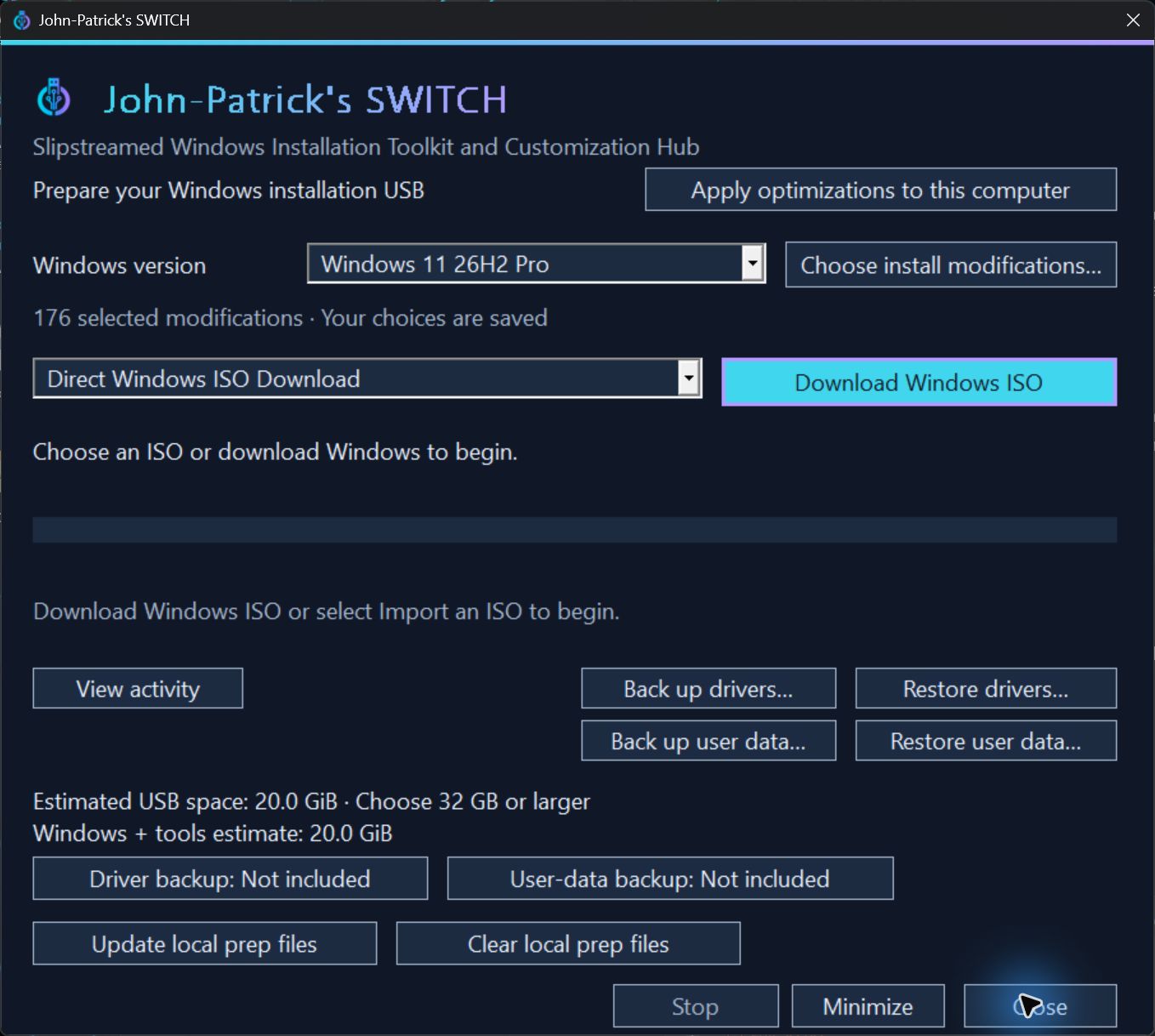
Choose Create a Windows USB or Apply optimizations to this computer. Each workflow saves its choices separately. For a new installation, open Choose install modifications and uncheck changes you do not want.
03Read the plan
Review your selected changes before confirming. View activity shows progress while SWITCH works.
04Create your USB
Choose optional driver and user-data backups before starting. Click Prepare USB drive once; preparation continues automatically. Confirm the drive shown before erasure. Selected backups run directly to the USB after creation.
How does the installation workflow work?
Prepare resources → choose the USB → review its capacity and erase confirmation → create the media → boot the destination computer → verify any selected backup → confirm the destination disk → install Windows → apply selected changes and restore data.
Disk erasure is destructive. Keep a separate verified backup, identify drives by model and capacity, and follow the app’s explicit confirmations. A Windows license is still required; this toolkit does not provide one.
What if post-install changes stop?
Choose Save diagnostic log to Desktop, then send the resulting ZIP for review. Completed changes remain in place. The log identifies the stopped step and any settings that could not be applied.
How do I refresh files or update an existing USB?
Update local prep files refreshes the official sources and prepares installer files while reusing verified caches. Clear local prep files removes downloads and preparation files when image servicing is idle, keeping your app, preferences and USB backups. Update SWITCH USB appears when a recognized drive is connected. It uses prepared files, skips matching files and preserves Drivers and UserData; refresh local prep first to include newer updates. Incompatible layouts or insufficient temporary space require explicit recreation, never automatic formatting.
How much space do I need?
SWITCH estimates USB space as you choose installation options and optional backups. Turn driver or user-data backups off to reduce the requirement. The estimate becomes more precise after the installer is prepared; the final drive capacity is checked before writing. Local Windows images and working copies also need tens of gigabytes of disk space.
Will this change the computer I use to create the USB?
Create a Windows USB prepares files for another installation. Apply optimizations to this computer is a separate, explicitly reviewed action that changes supported settings on the current computer and may request administrator approval. Opening the app or reading computer details does not apply settings.
Read the full preparation and support guide